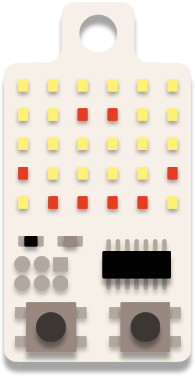
game · KeyChainino · Tutorial
[TUTORIAL] How to make the WALLED game step by step – Part 2
Written in 2016 for the first KeyChainino (ATtiny84, 30 LEDs). On the KeyChainino 144 games are made differently: see How to create your own game.
In the previous tutorial we learned how to make the “man” of the WALLED game and how to move it.
Today we start to build the descending walls and their gates that will be crossed by our man!
Let’s start by inserting the wall variables.
Step 1: Make the walls
First we insert a variable called wallYPosition that is used to change the Y position – ROW – of the wall that falls down.
Insert the wallYPosition after the MAN VARIABLES
//MAN VARIABLES
byte manXPosition = 2;//the position of the man
byte keySensibility = 70; //the sensibility of the two touch buttons.
//WALL VARIABLES
byte wallYPosition = 0; //Y value of the wall
Now we can create the function – fired by the Timer1 interrupt – that increases the wallYPosition to move the wall down.
We increase the wallYposition because the top of the LEDs matrix has ROW index 0. So the bottom has index MATRIX_ROW - 1 = 4
Let’s create the updateWallPosition(), after the function updateManPosition(), in this way:
void updateWallPosition() {
  int wallOldYPosition = wallYPosition; //store the old wall position

  if (wallYPosition < MATRIX_ROW - 1) { //if wall position isn't the bottom
    wallYPosition++; //increase Y position - go down
  } else { //else, if the wall touch the bottom
    wallYPosition = 0; //reset its position
  }

  //delete previous wall position
  for (byte x = 0; x < MATRIX_COL; x++) {
    matrixState[wallOldYPosition][x] = 0;
  }
  //show new wall position
  for (byte x = 0; x < MATRIX_COL; x++) {
    matrixState[wallYPosition][x] = 1;
  }
}
Well, in this function first we store the current wallYPosition in the wallOldYPosition variable.
Next we check if the wall hasn’t reached the bottom position: MATRIX_ROW - 1.
If so, we increase its Y position. Otherwise, if the wall has reached the bottom position – index 4 – we reset the wall position to 0 – top of the LEDs matrix.
After that we clear the previous position of the wall by clearing every LED in the same ROW of the OLD wallYPosition.
Next we set the new wall position by turning on all the LEDs in the new ROW.
Now we put this function inside the timer 1 overflow interrupt function – aka ISR(TIM1_OVF_vect) – because we want to update the wall position in the background without interference – like the delay() inside the updateManPosition().
So we insert this function inside the ISR(TIM1_OVF_vect) function after this declaration: TCNT1 = 65406; and before the charlieplexing functions.
ISR(TIM1_OVF_vect) {  // timer1 overflow interrupt service routine
  cli(); //disable interrupt
  TCNT1 = 65406;

  //THIS PART IS USED TO UPDATE THE WALL POSITION
  updateWallPosition();

  // THIS PART IS USED TO UPDATE THE CHARLIEPLEXING LEDS MATRIX
  // YOU CAN JUST DON'T CARE ABOUT THIS PART
  // BECAUSE YOU CAN CODE LIKE A STANDARD MATRIX BY MANIPULATING THE
  // VALUE OF THE matrixState MATRIX
  ...
But if we upload the sketch now we notice that the wall goes down too fast.
That’s because the timer 1 overflow occurs every 1/60 seconds = 0,0167 seconds. Too fast for us!
So we need to decrease the speed of the wall. How?
By creating a counter and increasing it. When it reaches our desired value, we fire the updateWallPosition() function.
Now add the following variables at the top of the sketch, after the wallYPosition variable declaration:
//WALL VARIABLES
byte wallYPosition = 0; //Y value of the wall

const byte wallSpeed = 15;
byte wallUpdatePositionCounter = 0; //it is a counter to update wall position
byte wallUpdatePositionSpeed = wallSpeed; //the actual speed of the wall
Well, our counter is the wallUpdatePositionCounter. We increase this counter until it reaches the wallUpdatePositionSpeed‘s value.
This last variable has the same value as the wallSpeed variable. Its value is inversely proportional to the speed of the wall.
Now we adjust the firing of the updateWallPosition() in the ISR(TIM1_OVF_vect) function in this way:
  ...
  wallUpdatePositionCounter++;
  if (wallUpdatePositionCounter > wallUpdatePositionSpeed) {
    updateWallPosition();
    wallUpdatePositionCounter = 0;
  }
  ...
Now we can upload the sketch and, after that, we can see the walls coming down.
The first thing that you have certainly noticed is that the walls don’t have gates! Right!
The second thing, that maybe you haven’t noticed, is that, at the first start of the game, the wall doesn’t start at the 0 position.
Let’s fix it!
Step 2: Create the wall’s gate!
A gate is just a turned-OFF LED in a specific X position – COL – of the wall.
This position can’t be the same for all the walls – or do you like to win easily? 🙂
So we need to randomise the gate position.
Insert the wallGateXPosition variable at the end of the WALL’S VARIABLES and before the ISR(TIM1_OVF_vect) function:
//WALL VARIABLES
byte wallYPosition = 0; //Y value of the wall
const byte wallSpeed = 15;
byte wallUpdatePositionCounter = 0; //it is a counter to update wall position
byte wallUpdatePositionSpeed = wallSpeed; //the actual speed of the wall
byte wallGateXPosition = random(0, MATRIX_COL); //randomized wall's gate

ISR(TIM1_OVF_vect) {
...
We randomise the wallGateXPosition between 0 and MATRIX_COL - 1
NOTE:
The random() function returns a random number between two values, in this way:
int x = random(min_value, max_value + 1);
Now we change the wallUpdateFunction() to show the wall’s gate:
void updateWallPosition() {

  int wallOldYPosition = wallYPosition; //store the old wall position

  if (wallYPosition < MATRIX_ROW - 1) { //if wall position isn't the bottom
    wallYPosition++; //increase Y position - go down
  } else { //else, if the wall touch the bottom
    wallYPosition = 0; //reset its position
    wallGateXPosition = random(0, MATRIX_COL); //randomize another gate
  }

  //delete previous wall position
  for (byte x = 0; x < MATRIX_COL; x++) {
    matrixState[wallOldYPosition][x] = 0;
  }

  //show new wall position
  for (byte x = 0; x < MATRIX_COL; x++) {
    if (x != wallGateXPosition) {
      matrixState[wallYPosition][x] = 1;
    }
  }
}
We randomise a new wallGateXPosition after the previous wall touches the bottom of the screen.
Then we modified the last for loop used to show the new wall in the matrixState.
We have declared that if the x position of the wall dot, that we are going to set in the matrixState, isn’t in the same position as the gate, we set the bit in that position.
Else, if we are in the same position as the gate, we don’t set the bit in the matrixState and so we don’t turn ON the LED in that position.
Now we can fix the fact that, at the first start, the wall starts at index 1 and not 0, by adding the following lines at the end of the setup() function.
  ...
  // enable global interrupts:
  sei();
  clearMatrix(); //clear the Matrix
  //show wall
  for (byte x = 0; x < MATRIX_COL; x++) {
    if (x != wallGateXPosition) {
      matrixState[wallYPosition][x] = 1;
    }
  }
}
That’s because, when we first declare wallYPosition, we set it to zero. When the function updateWallPosition() is fired, it immediately increases this variable and then it shows the wall in the new position with index 1.
By inserting the previous lines in the setup() function, we immediately show the wall in its first position with index 0.
Now we can upload the sketch and see the randomised gates in the walls!
Download the complete sketch for this second tutorial here.
You can actually play, but you never die because we need to implement the collision between the walls and the man.
After that we need to create the score and, to make the game more fun, we can increase the speed of the walls automatically.
All these things in the next tutorial!
Stay Tuned!